

Among the many factors in website SEO optimization, image optimization is often one of the most easily overlooked yet most influential aspects. In this article, we will discuss in depth the impact of image size and loading speed on search engine rankings, and introduce in detail a powerful WordPress image optimization plugin - theWebP Converter for Media。
Chapter 1: Why Image Optimization is the Core Battlefield of SEO
1.1 Weighting of images in web pages
In modern web design, images usually take up as much of a page's total resources as the60%-80%. According to HTTP Archive statistics:
- Average image size of web pages on the desktop side:2.5 MB
- Average image size for mobile web pages:2.0 MB
- Image requests as a percentage of total page requests50% and above
This means that optimizing image performance can directly and significantly reduce overall page load times.
1.2 Google's Page Experience Signals (PES)
Starting in 2021, Google is officially putting theCore Web Vitalsinto the search ranking algorithm. Two of these three core metrics are directly related to image loading:
LCP (Largest Contentful Paint)
- define: the rendering time of the largest visible content element in the viewport (usually an image or video)
- SEO Impact: Key metrics for measuring perceived loading speeds
- Qualifying standards: 2.5 seconds or less
- Image association: Large, Banner and Featured images on the first screen directly affect the LCP score.
CLS (Cumulative Layout Shift)
- define: the sum of all unexpected layout offsets during the page lifecycle
- SEO Impact: Measuring Visual Stability, Impacting User Experience
- Qualifying standards: Less than 0.1
- Image association: Unsized images cause the layout to bounce when loaded
FCP (First Contentful Paint)
- define: the point in time when the browser renders the first DOM content
- SEO Impact: the moment the user perceives that the page is starting to load
- Image association: Loading speed of small images such as logos, icons, etc.
1.3 The actual impact of image loading speed on SEO rankings
Relationship between bounce rate and load time
| Page load time | Increase in bounce rate |
|---|---|
| 1-3 seconds | 32% |
| 1-5 seconds | 90% |
| 1-6 seconds | 106% |
| 1-10 seconds | 123% |
Data source: Google/SOASTA Research, 2017
Key findings: When the page load time increases from 1 to 3 seconds, the bounce rate increases by 32%. and images are the main consumer during this time.
Pressure to Move Priority Indexes
Google has fully completed its Mobile-First Indexing (MFI) migration in 2023:
- Mobile page performance directly affects rankings
- Large images load more slowly in mobile network environments
- Impact of Image Optimization on Mobile SEO Magnified
1.4 Technical dimensions of image SEO
Limitations of traditional optimization tools
Many website operators are still stuck in the traditional thinking of image optimization:
- Manual compression upload:
- Inefficient and unable to batch process
- Difficulty in maintaining consistency
- Optimization of historical images not being able to go back
- Accelerate with CDN:
- Only the transfer speed is solved, not the file size.
- Costs increase linearly with traffic
- Lazy Loading:
- Optimize only images outside the first screen
- Not directly helpful to LCP
Core issues: Doesn't address the efficiency of the image format itself.
Chapter 2: Technical evolution of image formats and compression principles
2.1 Technical bottlenecks in traditional formats
JPEG (Joint Photographic Experts Group)
- Date of birth: 1992
- Compression principle: Lossy compression, based on the discrete cosine transform (DCT)
- Applicable Scenarios: Photographs
- SEO limitations:
- Transparency is not supported
- Limited progressive loading support
- Large file size for the same quality
PNG (Portable Network Graphics)
- Date of birth: 1996
- Compression principle: Lossless compression, based on the DEFLATE algorithm
- Applicable Scenarios: icons, screenshots, images requiring transparency
- SEO limitations:
- File sizes are typically 3-5 times larger than JPEGs
- Not suitable for photo-based content
2.2 WebP: a formatting standard for modern web pages
technical specification
Launched by Google in 2010, WebP is an image format designed for the Web:
| characterization | WebP | JPEG | PNG |
|---|---|---|---|
| compression loss (in digital technology) | ✅ | ✅ | ❌ |
| compression lossless | ✅ | ❌ | ✅ |
| transparency | ✅ | ❌ | ✅ |
| anime | ✅ | ❌ | ❌ |
| compression loss ratio | 25-35% is smaller. | standard of reference | – |
| compression lossless rate | 26% is smaller | – | standard of reference |
Status of browser support (2024 data)
- Global support:96.5%+
- Main Supported Browsers:
- Chrome/Edge (full version)
- Firefox (65+)
- Safari (14+, iOS 14+)
- Opera (full version)
- Unsupported Browsers: IE11 and below
SEO Revelations: WebP has become the de facto Web standard, and not adopting it means giving up a faster experience for most users.
2.3 AVIF: Next Generation Image Format
technological breakthrough
AVIF (AV1 Image File Format) is based on AV1 video encoding:
- Compression efficiency: Save more than WebP30-50%
- quality performance: Better picture quality for the same file size
- HDR support: Supports wide color gamut and high dynamic range
- Browser Support: Chrome 85+, Firefox 93+, Safari 16+
Comparison of actual data
Take a 1200×800 product photo as an example:
| specification | file size | Relative JPEG Savings |
|---|---|---|
| JPEG (Quality 85%) | 245 KB | standard of reference |
| WebP (quality 85%) | 168 KB | 31.4% |
| AVIF (Quality 80%) | 98 KB | 60.0% |
reach a verdict: AVIF represents the highest current level of image compression, subject to browser compatibility fallbacks.
2.4 Responsive Images and Adaptive Formatting
Picture element and Source selection
Modern browsers support automatic selection of the best format based on device capabilities:
<picture>
<source srcset="image.avif" type="image/avif">
<source srcset="image.webp" type="image/webp">
<img src="image.jpg" alt="描述文字">
</picture>
Working Principle:
- Browser Check
<source>的typecausality - If AVIF is supported, load AVIF version
- If AVIF is not supported but WebP is supported, load the WebP version
- If none of them are supported, fall back to JPEG.
Chapter 3: Pain Points and Solutions for WordPress Image Optimization
3.1 Limitations of WordPress Native Image Processing
WordPress, the most popular CMS (market share 43%+), has the following problems with its native image system:
Only JPEG/PNG is generated by default
- Uploaded images are automatically cropped to different sizes
- All variants are in their original format
- No mechanism for automatic conversion to modern formats
Cumulative effect of multiple images
Upload an original image and WordPress will generate it by default:
- Thumbnail (150 x 150)
- Medium size (300 x 300)
- Medium to large size (768 x 0)
- Large size (1024 x 0)
- Article featured image (based on topic)
(grand) total: A single image may generate 5-10 copies, each of which needs to be optimized.
3.2 Unsustainability of manual optimization
time cost
- Images need to be manually compressed for each batch upload
- Photoshop or online tools required
- Difficulty in maintaining consistent quality standards
The Dilemma of Historical Pictures
- What to do with the thousands of images already available?
- It is not practical to convert them manually one by one
- Replacing an image URL causes a 404 error
Complexity of multi-site management
- Each sub-site needs to be handled separately
- Inability to centrally manage image optimization strategies
3.3 Cost implications of third-party compression services
pay-per-use model
| service | free quota | payment threshold |
|---|---|---|
| ShortPixel | 100/month | $9.99/month (10,000 sheets) |
| Imagify | 20MB/month | $9.99/month (500MB) |
| TinyPNG | 500 sheets/month | $0.009/sheet |
Hidden costs:
- Ongoing monthly payment pressure
- Higher prices after exceeding the quota
- Re-optimization of historical images at additional cost
Uncontrollability of quality control
- Unable to fine tune compression parameters
- Compression quality is determined by the server
- Some services add watermarks or change colors
Chapter 4: WebP Converter for Media In-Depth Analysis
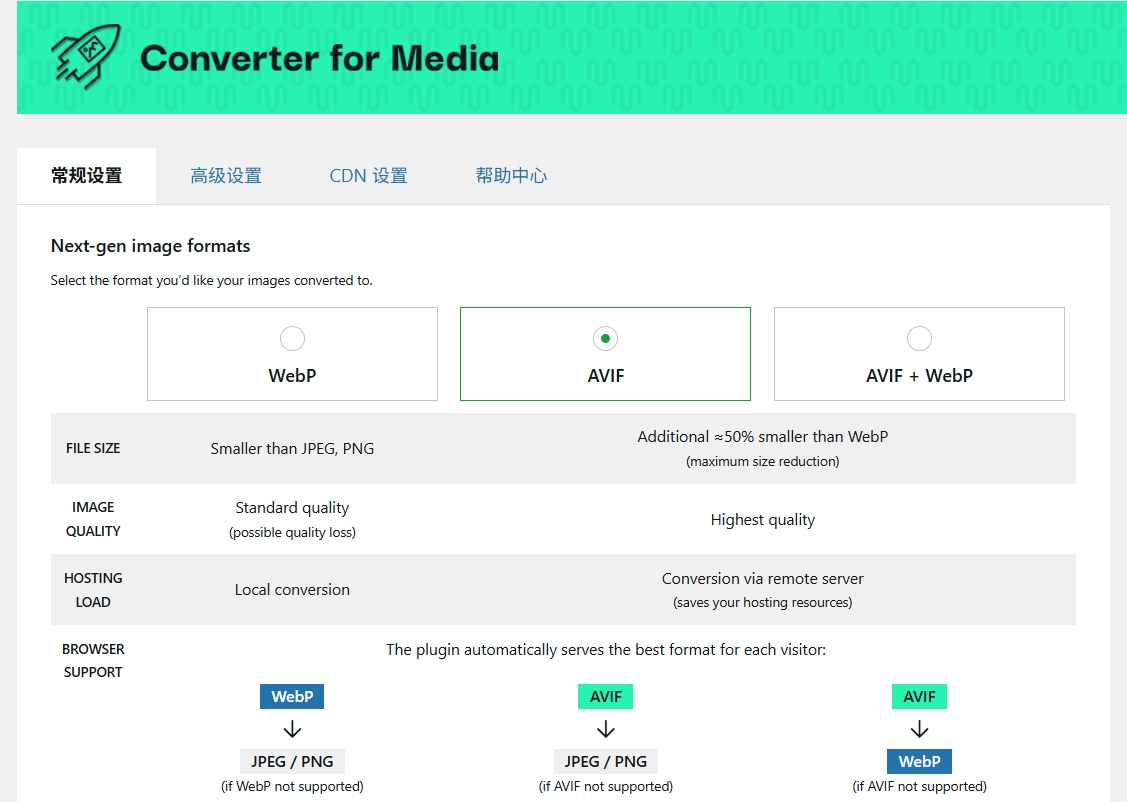
4.1 Plug-in Positioning and Core Benefits
WebP Converter for Media is a localized image optimization plugin designed for WordPress with a core design concept:Server-side format conversion, no need to rely on external APIs, completely free and powerful!。
Core Differences from Competitors
| characterization | WebP Converter | ShortPixel | Imagify |
|---|---|---|---|
| local conversion | ✅ | ❌ | ❌ |
| Zero monthly fee | ✅ | ❌ | ❌ |
| WebP support | ✅ | ✅ | ✅ |
| AVIF Support | ✅ | ✅ | ✅ |
| Privacy (images are not uploaded to the cloud) | ✅ | ❌ | ❌ |
| Batch processing of historical images | ✅ | ✅ | ✅ |
| Adjustable conversion quality | ✅ | ✅ | ✅ |
4.2 Technical Architecture and Working Principles
Conversion Engine: GD vs Imagick
The plugin supports two PHP image processing libraries:
GD library (recommended by default):
- PHP built-in, no additional installation required
- Fast conversion speed and low resource consumption
- Suitable for most shared hosting environments
Imagick library (advanced options):
- PHP extensions for ImageMagick
- Support for more advanced features (e.g., preservation of ICC color profiles)
- Conversion quality is finer
- Requires server-installed extensions
Three image loading modes
The plugin provides flexible loading strategies to adapt to different server environments:
Mode 1: Via .htaccess (best performance)
<IfModule mod_rewrite.c>
RewriteEngine On
RewriteCond %{HTTP_ACCEPT} image/webp
RewriteCond %{DOCUMENT_ROOT}/$1.webp -f
RewriteRule (.+)\.(jpe?g|png)$ $1.webp [T=image/webp,E=REQUEST_image]
</IfModule>
Working Principle:
- Browsers requesting images carry
Accept: image/webphead - Apache checks for the existence of a corresponding WebP version
- Returns WebP if it exists, returns the original image if it doesn't exist
- The whole process has zero PHP overhead and is purely a server-level rewrite.
dominance:
- Fastest response time
- Minimal server load
- Browser caching support
Mode 2: Pass Thru (most compatible)
Applicable to unsupported.htaccessRewritten host environment:
- Intercepting Image Requests via PHP Scripts
- Check the format supported by your browser
- Returns the contents of the image in the corresponding format
dominance:
- Compatible with any PHP hosting
- No Apache module support required
inferior:
- Slightly higher PHP processing overhead
- Cache headers need to be handled correctly
Model 3: Bypassing Nginx (dedicated optimization)
Special configuration mode for Nginx servers to solve Nginx not reading non-root directories.htaccessof the problem.
4.3 Core functions in detail
Dual format output strategy
The plugin supports generating both WebP and AVIF formats:
原始图片:photo.jpg
├── 生成 → photo.jpg.webp(WebP版本)
└── 生成 → photo.jpg.avif(AVIF版本)
Intelligent format selection logic:
- Browser requests for images
- probe
AcceptDoes the header containimage/avif - If yes, return AVIF in priority
- If AVIF is not supported but WebP is supported, return WebP
- If neither is supported, the original JPEG/PNG is returned.
Batch optimization and automatic conversion
Historical Image Processing:
- Batch convert entire media library with one click
- Supports batch processing of background Cron tasks
- Batch size can be set to avoid overloading the server
Automatic conversion of new images:
- Auto-trigger conversion when uploading images
- Support for WordPress Multi-Size Generation Hooks
- Synchronized conversion of all thumbnail variants
Intelligent Quality Control
Conversion quality level(Customizable):
- 75%: Minimal files, fits thumbnails
- 80%: Balanced mass
- 85%(Recommended): Best choice for most scenarios
- 90%: High-quality requirements
- 95%: Nearly lossless
Intelligent Document Management:
- Automatically detect if the converted file is larger than the original image
- Optional automatic deletion of larger conversion files
- Keep the original file as a fallback
4.4 Advanced Features and Integration
CDN Compatibility
Natively supported CDNs:
- BunnyCDN: Automatic recognition and optimization of URLs
- Cloudflare: Support for cache auto-cleaning API
General CDN Configuration Essentials:
- Ensure CDN forwarding
Accepthead - Configure the correct cache key (needs to contain formatting information)
- Setting the appropriate cache expiration time
Cache plugin integration
The plugin automatically detects and is compatible with mainstream caching plugins:
// 自动清理的缓存插件列表
- LiteSpeed Cache
- WP Super Cache
- W3 Total Cache
- WP Fastest Cache
- WP Rocket(部分支持)
- Hummingbird
- Breeze
- Cache Enabler
- WP-Optimize
Timing of auto-cleanup triggers:
- When the plug-in is activated/deactivated
- When setting changes
- Batch optimization at completion
WP-CLI Support
For large sites or development workflows, the plugin provides full command line support:
# 计算可转换图片数量
wp converter-for-media calculate
# 批量转换所有图片
wp converter-for-media regenerate
# 强制重新转换所有图片(更新质量设置后使用)
wp converter-for-media regenerate --force
# 查看转换统计
wp converter-for-media stats
Multisite support
- Centralized configuration for network administrators
- Independent statistics for each sub-site
- Support cross-site batch operation
Chapter 5: Practical Configuration Guide
5.1 Pre-installation environmental inspection
Required server components
Apache server:
# 必需的模块
mod_rewrite  # URL重写
mod_mime     # MIME类型定义
mod_expires  # 缓存控制
mod_headers  # 响应头部
PHP Requirements:
- PHP 7.1 or higher
- GD extension (usually installed by default) or Imagick extension
- WebP supports authentication:
php -m | grep -i gd
Verify that GD supports WebP:
<?php
if (function_exists('imagewebp')) {
echo "WebP support enabled";
}
?>
Checking directory permissions
Make sure the following directory is writable:
/wp-content/uploads(catalog of original images)/wp-content/uploads-webpc(Directory of images after conversion, created automatically by the plugin)
5.2 Recommended Configuration Options
Basic configuration (suitable for most sites)
General Settings:
- output format: WebP (stability first) or WebP + AVIF (performance first)
- Conversion quality:85%
- Image loading mode: via .htaccess
- Supported Extensions: jpg, jpeg, png, gif
Advanced Settings:
- Automatic removal of larger files: Enable
- Retention of metadata: on demand (enabled when SEO needs to retain GPS/copyright information)
- Cron Automatic Conversion: Enabled (if custom catalog images are available)
E-commerce website optimization solutions
Special optimization for product images:
Configuration adjustments:
- Conversion quality: 90% (guaranteed clear product details)
- Supported Catalogs: uploads, plugins, themes
- output format: WebP + AVIF (for high-end users)
complementary measure:
- Enabling Lazy Loading
- Use an image CDN (e.g. BunnyCDN)
- Configure image preload for key first screen images
Content Blog Optimization Program
For the characterization of the article's accompanying image:
Configuration adjustments:
- Conversion quality:: 80% (balancing loading speed and mass)
- output format: WebP (maximizing compatibility)
- Cron Settings: Nightly automatic processing of newly uploaded images
5.3 First-time batch optimization process
Step 1: Backup (important!)
Although the plugin does not modify the original files, it is still recommended:
- Full Backup
/wp-content/uploadscatalogs - Or use a backup plugin such as UpdraftPlus
Step 2: Small batch testing
- Select a small number of images (10-20) to test the conversion
- Checking the quality of converted images
- Verify that the front-end loads WebP/AVIF correctly
Step 3: Full Volume Optimization
- Go to Plugin Settings → Batch Optimization
- Click ”Start Batch Optimization”.”
- Monitor processing progress (may take hours depending on number of images)
- You can close the page during processing, the background will continue to execute
Step 4: Validation of results
browser authentication:
- Open any page of the website
- Press F12 to open Developer Tools
- Switch to the Network tab
- Filtering Image Requests (Img)
- Check if the Type column is displayed
webp或avif
Response header validation:
Content-Type: image/webp
Vary: Accept
5.4 Frequently Asked Questions and Solutions
Problem 1: Pictures cannot be displayed after conversion
inspection step:
- probe
.htaccessWhether the file is generated - Verify that the Apache module is enabled
- Test that direct access to the WebP file URL works correctly
- View error messages in the ”Debug” tab of the plugin
Common Error Codes:
rewrites_not_working: rewrite rule not in effect, check .htaccesslibs_not_installed: GD/Imagick not installed or lack of WebP supportpath_webp_not_writable: Insufficient output directory permissions
Problem 2: Conflict with CDN
symptomatic: CDN returns raw format instead of WebP
prescription:
- Ensure CDN configuration forwarding
Acceptrequest header - In the CDN settings add
Vary: Acceptresponse header - Retest after clearing CDN cache
Problem 3: Unsatisfactory picture quality
Adjustment strategy:
- Improved conversion quality settings (e.g., from 85% to 90%)
- Use Imagick library (if available) instead of GD
- Check the ”Preserve metadata” option (to prevent loss of color profiles)
- Applying new settings using ”Force reconversion”
Issue 4: Excessive server resource utilization
Optimization Recommendations:
- Resize Cron Batch in Advanced Settings
- Batch optimization by avoiding peak access times
- Consider upgrading the server or using the WP-CLI command to manually execute the
- Exclude directories of images that do not need to be converted
Chapter 6: Performance Monitoring and Continuous Optimization
6.1 Core Web Vitals monitoring
Using Google PageSpeed Insights
Test site: https://pagespeed.web.dev/
Indicators of focus:
- LCP: View Opportunities → “Serve images in next-gen formats”
- CLS: Ensure that images have the correct width/height attributes set
- Serve static assets with an efficient cache policy: Check cache headers
Using Google Search Console
Core Web Vitals Report:
- Monitor page experience data from real users
- Identify specific pages that need to be optimized
- Tracking the effects of improvements
6.2 Image loading performance testing tools
WebPageTest (in-depth analysis)
Test site: https://www.webpagetest.org/
Test Configuration Recommendations:
- Test location: select the target user's region
- Browser: Chrome (WebP/AVIF support)
- Connection speed: 3G or 4G (to simulate a mobile environment)
Analytical focus:
- Image loading time in Waterfall charts
- Volume share of images in Content Breakdown
- Optimization Recommendations in Image Analysis Reports
GTmetrix (composite score)
Image optimization items in Structure scoring:
- Use AVIF Format
- Use WebP Format
- Properly Size Images
- Defer Offscreen Images
6.3 Continuous Optimization Strategy
List of periodic audits
Monthly inspections:
- Whether newly uploaded images are automatically converted
- Are PageSpeed Insights scores dropping
- Whether there is an image loading error
Quarterly inspections:
- Evaluate whether conversion quality needs to be adjusted
- Check for changes in AVIF browser support
- Updating CDN Caching Policy
Log Monitoring
Enable error logging for the plugin (if required):
- Monitor for failed conversion images
- Analyze reasons for failure (unsupported format, insufficient memory, etc.)
- Targeted optimization of anomalous images
Chapter 7: Case Study and Effectiveness Demonstration
7.1 E-commerce website practical case
Website Background:
- Platform: WooCommerce
- Number of products: 2,000+
- Original average number of images: 5/product
- Original total number of images: 10,000+
Data before optimization:
- Average product image size: 350 KB (JPEG)
- Total size of product listing page: 4.2 MB
- PageSpeed Insights Mobile Score: 42
- LCP: 4.8 seconds
Optimized with WebP Converter:
- Average WebP size: 230 KB (saving 34%)
- Average AVIF size: 165 KB (saving 53%)
- Total size of product listing page: 2.1 MB
- PageSpeed Insights Mobile Score: 78
- LCP: 2.1 seconds
Operational impact:
- Bounce Rate Reduction 18%
- Mobile Conversion Rate Improvement 12%
- Increased depth of page views
7.2 Content Blogging Practical Cases
Website Background:
- Platform: WordPress + Gutenberg
- Number of articles: 500+
- Featured image: 1200×630
- Content mapping: 800px wide
Data before optimization:
- Featured image average size: 180 KB
- Total article page image size: 1.1 MB
- Average loading time: 3.2 seconds
Configuration options:
- Quality setting: 80%
- Format: WebP (compatibility preferred)
- Cron Nightly Batch Processing
Optimized data:
- Featured image average size: 95 KB
- Total image size of article page: 580 KB
- Average loading time: 1.8 seconds
- Google Crawler Crawling Frequency Increased
Chapter 8: Advanced Tips and Considerations
8.1 SEO Friendly Image Optimization Tips
Alt tag retention
The WebP Converter does not modify the HTMLaltProperties:
<!-- 原始代码 -->
<img src="photo.jpg" alt="红色运动鞋侧面展示">
<!-- 插件处理后(通过.htaccess重写返回WebP,HTML不变) -->
<img src="photo.jpg" alt="红色运动鞋侧面展示">
<!-- 实际加载的是photo.jpg.webp -->
SEO Tips: Make sure all images have descriptive alt text, which helps with image search rankings.
Pictures in Structured Data
If you're using Schema markup, make sure the image URL is actually accessible:
{
"@context": "https://schema.org",
"@type": "Product",
"image": {
"@type": "ImageObject",
"url": "https://example.com/wp-content/uploads/product.jpg",
"width": 800,
"height": 600
}
}
Validation Methods: Use the Google Rich Media Test tool to check that the images are crawled correctly.
Image Sitemap Optimization
If using an image Sitemap, it is recommended:
- Include the original image URL (the plugin automatically handles format negotiation)
- Optionally add
<image:caption>和<image:title>tab (of a window) (computing)
8.2 Security and Privacy Considerations
Advantages of data localization
WebP Converter's local processing advantages over cloud-based compression services:
- ✅ Images are not uploaded to third-party servers
- ✅ Compliance with data protection regulations such as GDPR
- ✅ No risk of API key compromise
- ✅ No dependency on external service availability
File Permission Security
Recommended Permission Settings:
# WordPress目录
/wp-content/uploads      755
/wp-content/uploads-webpc 755
# .htaccess文件
/wp-content/.htaccess    644
/wp-content/uploads/.htaccess 644
8.3 Synergy with other performance plug-ins
Best combination of caching plugins
Recommended Match:
- WebP Converter(in picture format)
- LiteSpeed Cache(page caching + delayed image loading)
- Asset CleanUp(CSS/JS optimization)
Configuration order:
- Configure WebP Converter first to complete the image conversion
- Re-enable page caching
- Finally turn on delayed loading
Conflict avoidance settings
When used in conjunction with ShortPixel/Imagify:
- Choose one of these as the main image optimization solution
- If using WebP Converter, disable the WebP conversion function of other plug-ins
- Avoid loss of quality due to double compression
Chapter 9: Summary and action checklist
9.1 Review of core elements
- Image optimization is SEO infrastructure: Directly impacts Core Web Vitals and user experience
- Importance of formatting choices: WebP has become the standard, AVIF is the future
- Advantages of Localization Solutions: WebP Converter provides zero-cost, high-efficiency solution
- The Need for Continuous Monitoring: Performance optimization is a long-term effort that requires regular audits
9.2 Immediate action checklist
Finished today.:
- Install and activate WebP Converter for Media
- Operational environment check to ensure that the server meets the requirements
- Configure base settings (Quality 85%, WebP format, .htaccess mode)
Completed this week:
- Perform batch optimization to process historical images
- Verify that the front-end loads WebP correctly
- Run the PageSpeed Insights test to record benchmark scores
Monthly maintenance:
- Check for automatic conversion of newly uploaded images
- Monitoring Core Web Vitals Reports
- Analyze conversion logs and handle failure cases
9.3 Resources and Extended Reading
Official Resources:
- Plugin documentation: https://mattplugins.com/docs/
- Compatibility checking guide: https://mattplugins.com/docs/how-to-test-converter-for-media-plugin
- Changelog tags inside the plugin
Learning Resources:
- Introduction to Google WebP: https://developers.google.com/speed/webp
- AVIF format explained in detail: https://avif.io/
- Core Web Vitals Optimization Guide: https://web.dev/vitals/
Appendix: Quick Reference Table
A1. Example of a configuration file
Apache .htaccess (automatically generated):
# BEGIN Converter for Media
<IfModule mod_rewrite.c>
RewriteEngine On
RewriteCond %{HTTP_ACCEPT} image/webp
RewriteCond %{REQUEST_FILENAME} -f
RewriteCond %{DOCUMENT_ROOT}/wp-content/uploads-webpc/$1.webp -f [OR]
RewriteCond %{DOCUMENT_ROOT}/wp-content/uploads-webpc/$1.webp -f
RewriteRule (.+)\.(jpe?g|png|gif)$ /wp-content/uploads-webpc/$1.webp [NC,T=image/webp,L]
</IfModule>
<IfModule mod_headers.c>
<FilesMatch "\.(jpe?g|png|gif|webp|avif)$">
Header append Vary "Accept"
</FilesMatch>
</IfModule>
# END Converter for Media
A2. Quick reference to frequently asked questions
| concern | Possible causes | prescription |
|---|---|---|
| Image 404 error | .The .htaccess rule is not in effect | Check Apache module, add rules manually |
| JPEG still loaded | Browser not supported/WebP file does not exist | Check if the conversion was successful, clear the cache |
| conversion failure | lack of memory | Reduced number of batch processes and increased PHP memory limitations |
| The quality is terrible. | Quality set too low | Adjusted to 85% and above, using Imagick |
| Backstage jamming | Processing too many images at the same time | Reducing the number of Cron batches |
A3. Performance comparison data sheet
| norm | pre-optimization | WebP only | WebP+AVIF |
|---|---|---|---|
| Average image size | 250 KB | 165 KB | 120 KB |
| Total page image volume | 2.5 MB | 1.6 MB | 1.2 MB |
| LCP time | 3.5s | 2.3s | 1.9s |
| PageSpeed rating | 55 | 72 | 85 |
This article was last updated on March 27, 2026
Plugin Version: WebP Converter for Media 6.5.4
Applicable WordPress version: 6.0+
